





SharePoint Version Management: How to Control Version History & Reduce Storage Costs


SharePoint version management is becoming increasingly important as Microsoft 365 storage costs rise. Poorly managed version history across SharePoint, Teams and OneDrive can quickly consume storage, increase overage costs and create governance challenges.
In this article, we explain how SharePoint version management works, how to control version growth safely, and how to reduce unnecessary storage consumption across your Microsoft 365 environment – including Teams and OneDrive content – which is ultimately stored in SharePoint Online.
For many organisations, version settings are rarely reviewed once a tenant is live. If you’ve inherited a SharePoint environment (rather than built that you’ve built from scratch), there’s a good chance your current settings are increasing storage costs without you even realising it.
The good news is that version sprawl can usually be reduced significantly without affecting collaboration or compliance.
So first let’s dig into what versioning is all about…
How SharePoint Versioning Works – and Why Does it Consume Storage So Quickly?
SharePoint creates a new version of a document each time it is saved. This behaviour can be useful, because it allows users to:
- Restore previous versions of files if they make a mistake
- Track changes to documents and files over time
- Recover from accidental edits or deletions
- Support collaborative working.
However, modern Microsoft 365 working habits can generate versions far faster than you might expect.
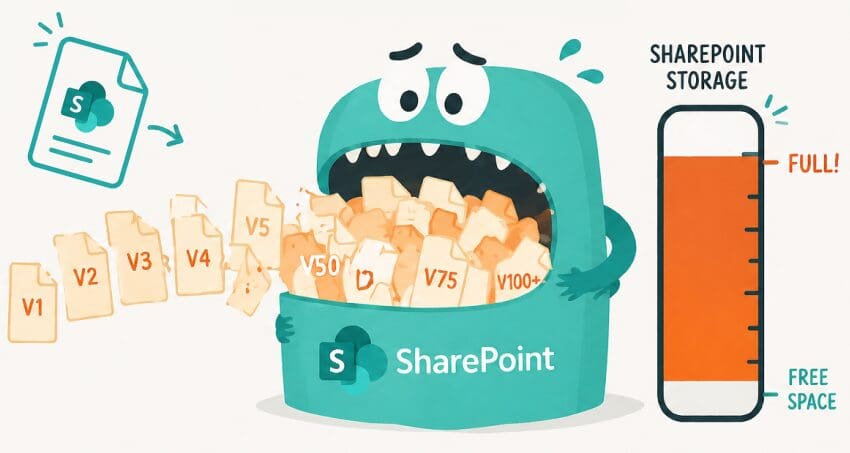
Here’s some things that you might not be aware of that will romp through your storage quota:
- Microsoft, by default, allows up to 500 major versions of a file and it’s possible to have minor versioning enabled.
- A handy feature called AutoSave (which is enabled by default in Word, Excel and PowerPoint) can automatically create multiple versions in a single editing session, even if the changes are minor. And did you know that web versions of Word, Excel etc are always set to autosave?
- Co-authoring increases this further: A large Excel file that a team updates regularly can accumulate versions quietly over the years until the file history is consuming many gigabytes of your quota, despite the ‘live file’ being a fraction of that size.
The thing is, version history contributes to your storage usage. While Microsoft may store only the differential changes between versions in some cases, many file types (especially larger or binary files such as images, recordings, CAD) can consume close to the full file size with each new version created – even if it’s the most minor of ‘tweaks’.
This means a 10MB file with 200 versions can potentially consume around 2GB.
Check out Microsoft’s versioning documentation on Learn for more detail.
5 THINGS THAT ARE COSTING YOU MONEY
The Hidden SharePoint Storage Feeders
- 500 version defaults.
- AutoSave.
- Co-authoring.
- Legacy libraries with no standards.
- Old versions not automatically being cleaned up.
So What Can We Do to Fix Versioning?
Some organisations have already tried to tackle the issue by proactively reducing version limits. In SharePoint Online, versioning controls can be configured at the Tenant level using the SharePoint Admin portal and at the document library level using library settings. It’s also possible to configure site and library level settings using PowerShell. One thing worth noting is that you can’t actually turn versioning off!
The problem is that, in many environments, this has been done reactively and inconsistently rather than strategically.
It’s common to find one library still running Microsoft’s 500 major version default, legacy sites with totally different settings, others capped at various limits, libraries with minor versioning enabled for no clear reason, and others with no meaningful controls at all. The result is a bit of a mis-mash.
I see this a lot. In fact Reddit is full of examples of where versioning is causing headaches:
- One admin reported single PowerPoint files growing to hundreds of GBs in version history because staff edited large files daily.
- Others discuss tenants where new version limits were enabled, but older sites and libraries retained legacy settings.
- Admins are finding that lowering limits manually often doesn’t automatically clean historic versions, meaning storage issues can continue long after settings are changed (more on this later in this article).
The good news is that these problems are totally fixable – if you tackle versioning in the right order, standardise settings properly, and clean up historic sprawl rather than just changing defaults going forward.
Check out my 3-step plan below.
Step 1: Audit What You’ve Got in SharePoint
Don’t just change settings – understand the impact first.
Before touching anything, you need a true picture of the current state of version settings across your tenant.
That means knowing, for every document library:
- Which use the default 500 limit?
- Which ones have custom limits?
- Where’s draft (minor) versioning active?
- Which sites are the worst culprits for storage consumption?
- Where are the exceptions?
SharePoint Admin Centre does not provide this at library level, so most organisations use PowerShell or external consultancy to do this.
Writing a PnP PowerShell script could allow you to loop through every site and every library, pull the current versioning settings, and produce a report. What you are aiming for is a flat report: library name, site URL, version limit, whether minor versioning is on, and ideally a storage figure attributable to version history.
Get a clear insight into your SharePoint storage situation, along with ‘What If’ modelling if you change up versioning.
Step 2: Set Sensible Versioning Policies – and Understand the Impact Before Making Changes
One of the most overlooked aspects of SharePoint version management is user expectation and genuine business needs.
Reducing version limits or clearing down historical versions without understanding how they’re used can quickly lead to support tickets when a user expects an older version to be available, only to find it’s been removed.

So before making any large-scale changes, it’s important to understand how version history is actually being used.
There’s no single correct answer I can give you as to how many SharePoint versions to maintain, but there is a reasonable baseline for most organisations:
- Major versions only,
- A limit somewhere between 20 & 100 depending on how sensitive and actively edited the content is, and
- No minor (draft) versioning unless a library has a genuine publishing process that needs it
- Formal exceptions for legal, financial and other regulated docs.
The default of 500 is almost never justified operationally.
Whatever version policies you decide to implement, make sure you get business sign-off first.
Setting tenant-level version defaults for new libraries is straightforward in the SharePoint Admin Centre.
The important thing to bear in mind, is that changing version settings doesn’t retroactively update libraries that already exist. It only applies to libraries created after the change.
For your existing files, you need to either work through your libraries manually or better still, using PowerShell, which gives you the ability to go through every library across every site in your tenant and enforce a consistent configuration.
If you want to do this yourself, there are two commonly used PowerShell options to manage versioning in bulk:
- PnP (Patterns & Practices) PowerShell commands are documented on Microsoft Learn and
https://pnp.github.io/powershell/ and are widely used in the SharePoint community. For example, Get-PnPSiteVersionPolicy Returns the version policy setting of a site and Set-PnPSiteVersionPolicy can be used to set versioning on a site. - Set-SPOListVersionPolicy is Microsoft’s native SharePoint Online management command (see the reference documentation for Set-SPOListVersionPolicy which covers the parameters in detail).
Before you do any version management at scale, do one thing first: identify your exceptions.
Legal, HR and Finance are the obvious starting points:
- Legal teams working on active matters often need longer version histories for review and audit purposes.
- Finance documents may have retention obligations that will directly impact how versioning works (see end of next section).
You might even have to bear in mind different jurisdictions if your tenant is a global one.
Step 3: Remove* the Historical Backlog
Changing version settings going forward is the easy bit. The harder problem is clearing the backlog of historic versions already sitting in your tenant.
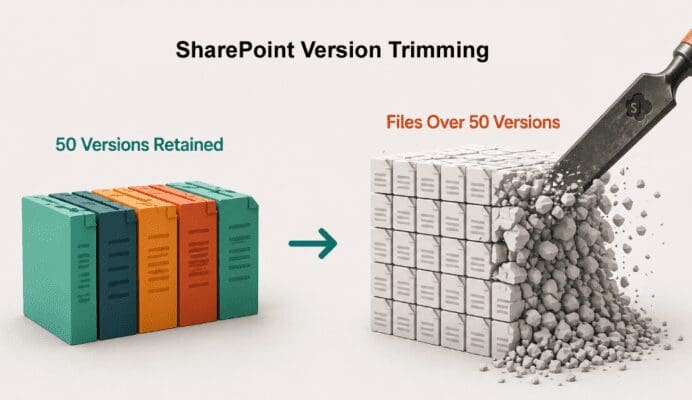
The fact is that reducing a library’s limit from 500 to 50 does not immediately delete versions 51 through 500. Those old versions can continue consuming storage until they’ve been actively removed, or trimmed.
To do the trimming, Microsoft introduced intelligent versioning (also known as Automatic Version History Cleanup).
This uses a background process to progressively thin out (delete) older file versions over time. The downside of this service is that it ‘chips away’ at files gradually rather than delivering instant storage savings, and bear in mind that Microsoft ‘makes the decisions’, not your organisation.
A faster route to recovering the storage used by older versions is to use PnP scripts to delete (trim) old versions. For example New-PnPLibraryFileVersionBatchDeleteJob.
Bear in mind that in large-scale scenarios (thousands of sites), some jobs may still be in progress weeks or months later, but in sites that are >4TB this command can take 12 hours to a few days to complete.
If you want something to work faster clearing down SharePoint versions in large tenants we would recommend using AvePoint solutions.
Benefits of using tools from AvePoint include:
- Automated warnings to tell you someone’s tried to re-set a version limit that’s ‘out of whack’ with your policy.
- Fast, large-scale version deletion with better handling of API throttling than manual scripts.
You also get scheduled policy-driven rules to delete versions without the overhead of running manual scripts.
*Deletion of SharePoint Versions Isn’t the Only Option
In reality – and this is something we’ve seen consistently over decades of delivering archiving solutions – many IT teams are understandably cautious about large-scale deletions. It’s not the act itself that’s difficult, but the potential consequences of getting it wrong.

Archiving – the Alternative to SharePoint Version Trimming
The other great thing that’s on offer with AvePoint is the ability to archive files older than a given setting instead of deleting them, with the double-bubble benefit of reducing the costs of SharePoint storage whilst ensuring end user and compliance needs are not jeopardised.
And, for organisations that want to prevent the problem just coming back again as new sites are created, ProvisionPoint 365 offers templated site and library creation so that new document libraries are configured correctly from day one according to their use-case, rather than inheriting whatever defaults happened to be in place at the time.
Watch Out if You Have Retention Policies in Place
Finally, it is also important to understand that version reductions do not always lead to immediate storage savings where Purview retention is in place, as your retention policies may continue to preserve older versions beyond the new limit until the retention period expires.
From an admin perspective, this can make it feel like your version settings haven’t worked – when in reality, retention is doing exactly what it’s designed to do.
Where it gets more challenging is explaining this to stakeholders. You’ve made a change, expectations have been set around reclaiming space, and yet the numbers don’t budge.
Without clear reporting on where retention is applied and what data is being preserved, it can be difficult to justify the outcome or predict when savings will actually be realised.
There’s also a practical consideration: once retention is in place, removing versions isn’t just a technical decision – it becomes a governance decision. You may need approval, policy changes, or alternative approaches (such as archiving as described above) to achieve the desired result.
This is why many organisations find that version management alone isn’t enough, and that a broader strategy is needed to balance control, compliance, and cost.
Planning a mass SharePoint version clear out? See how we can help using powerful SharePoint version management and archiving tools.
Summary: What to Do Next
First, run an audit. Without it, you’re guessing what to change and what to leave alone. If you have the ‘internal bandwidth’, PowerShell will get you there.
Define your versioning policy before you change anything. Get the exceptions identified and documented, particularly for Legal, HR and Finance. Apply settings consistently across your tenant using the Admin Centre for new libraries and PowerShell or tools for the existing ones. Consider using a platform that will apply standard (and appropriate) templates for new sites without IT intervention.
Then tackle the SharePoint version backlog. This is the step that takes the longest and is most often underestimated. Changing your version settings takes minutes. Clearing the years of accumulated version history across a large tenant takes planning and the right approach. It can take time, but like clearing out a storage locker, the result is satisfying and can make a real difference to your budget.
And, when it comes to working out the best tools for the job, we can help. For example, if SharePoint backup, data security or Copilot readiness are also on the agenda, a broader platform may make more sense than a tool focused purely on version management.
For example, if you still have a SharePoint storage problem after addressing version control, archiving for SharePoint might be your next ‘port of call’, and this is something we have a LOT of experience in.
If you want to start with the audit, get in touch to find out about what’s involved in getting your own 30-days of reporting and analysis across your Microsoft 365 tenant.
SharePoint Reporting & What-If Analysis Offer
Get FREE SharePoint storage insights, ‘simulations’ & reports for a month – identify ROT, versions, duplicate files and more.