





Learning Management
5 Ways to Collect “Read and Understood” Acknowledgements in Microsoft 365


When you need to publish a new or updated policy or circulate an important document, simply sending a link isn’t enough.
You really need to know:
- Who has seen it
- Who’s acknowledged it
- And ideally, who has actually understood it!
The challenge is that Microsoft 365 doesn’t provide a single, built-in “read and understood” feature for documents. So how do you do it properly?
Why “read receipts” aren’t enough
It’s tempting to rely on things like:
- Email read receipts
- SharePoint access logs
But these don’t really give you what you need.
They can show that someone:
- Opened a document
- Received an email
…but not that they:
- Read it
- Understood it
- or, indeed, that they agreed to it.
In other words, you don’t get an audit trail or proper governance of your policy updates.
For organisations operating in regulated industries, or where legal defensibility that you’ve “done the right thing as a business”, these distinctions really do matter.
For example, my colleague, Clare’s, recent article that looks at AI predictions for 2026 explains why having an AI Acceptable Usage Policy is important.
Making sure everyone understands how and where to use AI is especially important in the light of recent “headline-hitting” incidents where AI has been used and abused (and taken for gospel) by people in high profile roles and organisations.

What a good “read & acknowledged” process looks like
Before jumping into my tips for tools and approaches, it’s worth defining what “good” actually means when it comes to getting your company policies distributed effectively.
A proper “read and understood” process should:
- Identify the user
- Capture a timestamp
- Store responses centrally
- Allow reporting
- IMPORTANT: Have a way to easily follow up non-responders. Chasing up non-responders “manually” is the devil’s own job, as they say!
If your approach doesn’t do these things, it’s going to fall short when you need it most.
Here’s 5 practical ways for collecting read and understood acknowledgments, ranging from “quick and dirty” through to “ticking all the boxes”.
Option 1: Email-based acknowledgement (quick and simple)
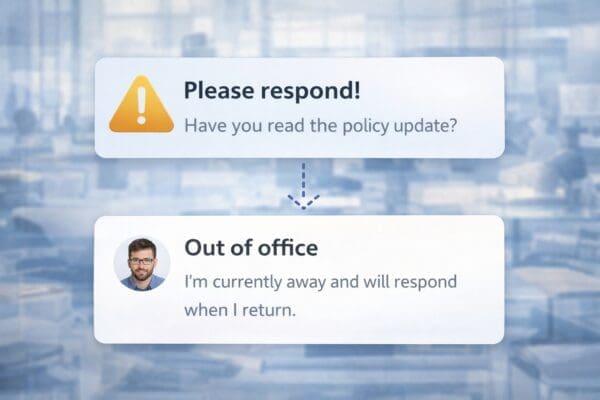
The fastest way to collect acknowledgements is via email. For example: “Please review this policy and reply to confirm you have read and understood it.”
Why this works
- Immediate distribution
- No setup required
- It’s going to be familiar to users
The limitations of using email to track policies include:
- It’s hard to track and chase up at scale
- Emails are very easy for recipients to ignore
- There’s no central reporting.
This approach is fine for low-risk communication, but not for anything formal or auditable, so if you have a compliance need to address, you’ll need a better approach.
Option 2: Microsoft Forms (relatively simple and effective)
For most organisations, this is the best balance between effort and control.
How it works
- Store your document in SharePoint or OneDrive
- Create a Microsoft Form
- Add:
- A link to the document
- A required confirmation question – e.g.: “I confirm I have read and understood this policy”
Share the form with your users.
Why it works
- It captures user identity automatically
- You get a timestamp for when the form is completed
- All the responses are stored in one place
- It’s easy to export and report on
What to watch out for
You’re relying on user confirmation – you can’t prove they actually read the document.
But for many use cases, this is more than sufficient.
Option 3: SharePoint Lists (structured and flexible)
For organisations that want more control than a simple form, but without building a full workflow, SharePoint Lists offer a powerful middle ground.
How to go about it
- Store your document in SharePoint
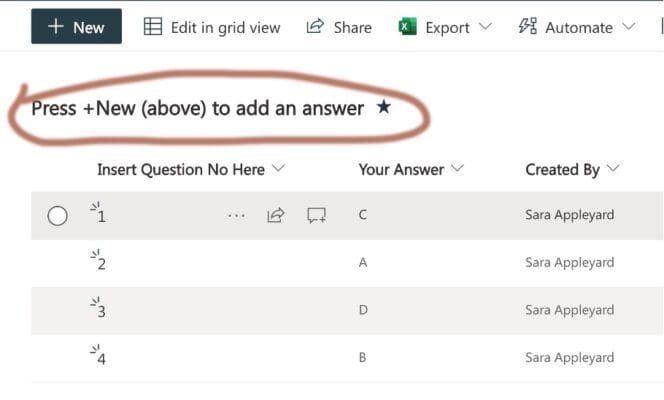
- Create a SharePoint List to track responses
- Add columns such as:
- Name (Person field)
- Questions & answers
- Acknowledgement (Yes/No)
- Date/time
- Provide users with a simple way to submit their acknowledgement (e.g. via a list form or link)
Where using lists can add value
Unlike Forms, SharePoint Lists give you:
- More flexibility in how data is structured
- Better integration with SharePoint sites and intranet pages
- The ability to layer in automation later.
For example, you can:
- Filter users who haven’t responded and send them a reminder email
- Create response views for managers
- Build simple compliance dashboards.
You can read more detail on setting up lists in one of my earlier Christmas-themed posts on using lists to set up a festive quiz!
Option 4: SharePoint + Power Automate (a bit more advanced)
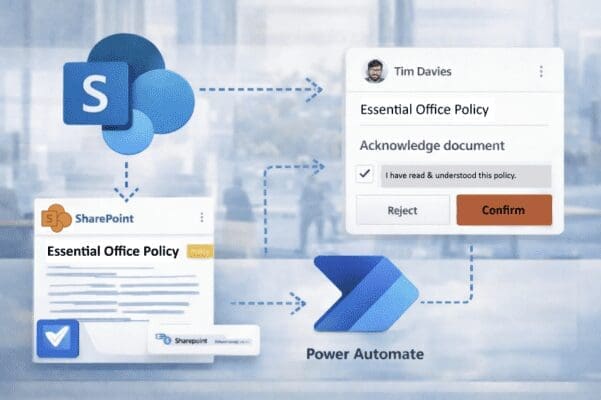
For organisations that want tighter integration, you can build a custom workflow using SharePoint and Power Automate.
An example approach is as follows
- Store your policy document in SharePoint
- Create a SharePoint List to track acknowledgements
- Use Power Automate to:
- Notify users when a policy is published or updated
- Send reminders to those who haven’t responded
- Record acknowledgements when users confirm they’ve read the document
Benefits
- Fully integrated into Microsoft 365
- Automated tracking and reminders
- Scales across departments.
Trade-off
This approach requires more setup and ongoing management, but it gives you more control.
Option 5: Use a learning platform for full “understood” checking and compliance tracking
If you need a structured, auditable approach, a learning platform is the most effective option.
For example, using a solution like Learn365 – check out our video on tracking skills and certifications in Learn365.
How it works in Learn365
- You upload your policy document in the same way you’d upload a training course
- You publish this course and make it “mandatory”
- You can optionally include a short quiz to check understanding of your policy. In Learn365 you can, of course, use AI to automatically generate your quiz.
Why tracking “read & understood” is powerful in Learn365
- You get to track completion of any requests properly
- Managers get full reporting and audit trails
- Reminders and deadlines are automatically handled
- You get to demonstrate proper engagement with your policies, not just acknowledgements that they’ve been read.
When to use an LMS like Learn365 for administrating “Read & Understood” scenarios
Of course, Learn365 offers so much more than “Read and Understood” tracking, so arguably it’s overkill if you just have this requirement.
There is, however, a strong justification for an LMS if you need to keep your workforce fully up-to-speed with new policies and new skills that go along with compliance.
For example, where health and safety measured need to be in force and reviewed annually or where certifications need to be maintained in order to “do business”.
Conclusion
The tool (or approach) you use to ensure “Read & Understood” compliance matters – but how you present the request matters just as much.
Be clear: Instead of saying: “Please read this document”, be explicit and use requests such as: “This policy requires acknowledgement. Please review and confirm using the link below.”
Add simple validation: If the policy is important, include a basic quiz with 2–3 short questions.
This helps confirm that the document was properly read and that the key points were (hopefully) understood.
The key takeaway:
There is no native “read and understood” button in Microsoft 365, but there are a number of ways to “crack the nut” ranging from simple and low cost to comprehensive and involving a bit more expenditure.
Start simple if needed, but as requirements grow, move toward more structured and auditable approaches.
Deliver & track your policies & compliance training
Discover the solution designed to do this in Microsoft 365.