





Microsoft Places
What is Microsoft Places….and what does it offer now?


Microsoft Places is an advanced, AI-powered app designed to make it easier for hybrid workforces to meet in person.
Whether planning a meeting in advance, or knowing who’s in the office when you visit, Microsoft Places will make it easier to schedule a convenient time and place, or arrange an impromptu get-together.
In its latest incarnation, Microsoft Places is poised to be a game changer for the hybrid workplace. If you’re curious about what it can do for your organisation—and want to stay updated on ongoing improvements – now’s the perfect time to take a closer look by subscribing to our ‘Go Places’ channel.
Also, take advantage of our free Places Discovery workshop. See more information here: https://www.essential.co.uk/blog/articles/places-free-discovery-service/
TL;DR?
Microsoft Places could be a game changer for hybrid working:
It aims to help teams to connect in person and help enterprises optimise use of their hybrid office facilities.
We can help you take advantage of Microsoft Places on your terms.
How has Places developed?
We’ve been on the journey with Microsoft Places for a couple of years now. Places was first announced as a concept in 2022 and was launched for early testing in 2023, but it was not until summer 2025 that it became ‘rollout ready’.
Since then, Places has continued to evolve with features that centre around the workspace and desk booking experience, both in the Places app and directly from your calendar in Outlook and Teams.
But let’s be honest, there may still be aspects of Places that appear undeveloped or a missed opportunity, especially if you’re used to working with a third-party workspace booking system.
A major game-changer we expected from Places was a reliable way to see where colleagues plan to be in the office, making it easier to plan meaningful, in-person collaboration.
Arguably this area is still lacking for these reasons:
- No auto-update of weekly schedules – The ability to set your typical work hours and location in new Outlook is OK(ish) BUT it’s not currently dynamic. E.g., it doesn’t automatically update to reflect an ‘RSVP – Yes in Person’ on a day you wouldn’t normally come in.
- Location setting and check-ins remain too ‘manual’: Anything that tracks planned and current locations has to be super-easy or automated. Without this, people will simply forget to change their location status, or it just won’t be a priority for them.
What services does Microsoft Places currently offer?
If you have a Teams Premium licence*, the following services are currently available in the new Teams Microsoft Places App and from Outlook and Teams Calendar:
- Easier room & desk booking
- Easier in-person collaboration
*STOP PRESS: Microsoft Places licencing is set to change on the 1st April 2026
Easier Room & Desk Booking
….From Outlook Calendar
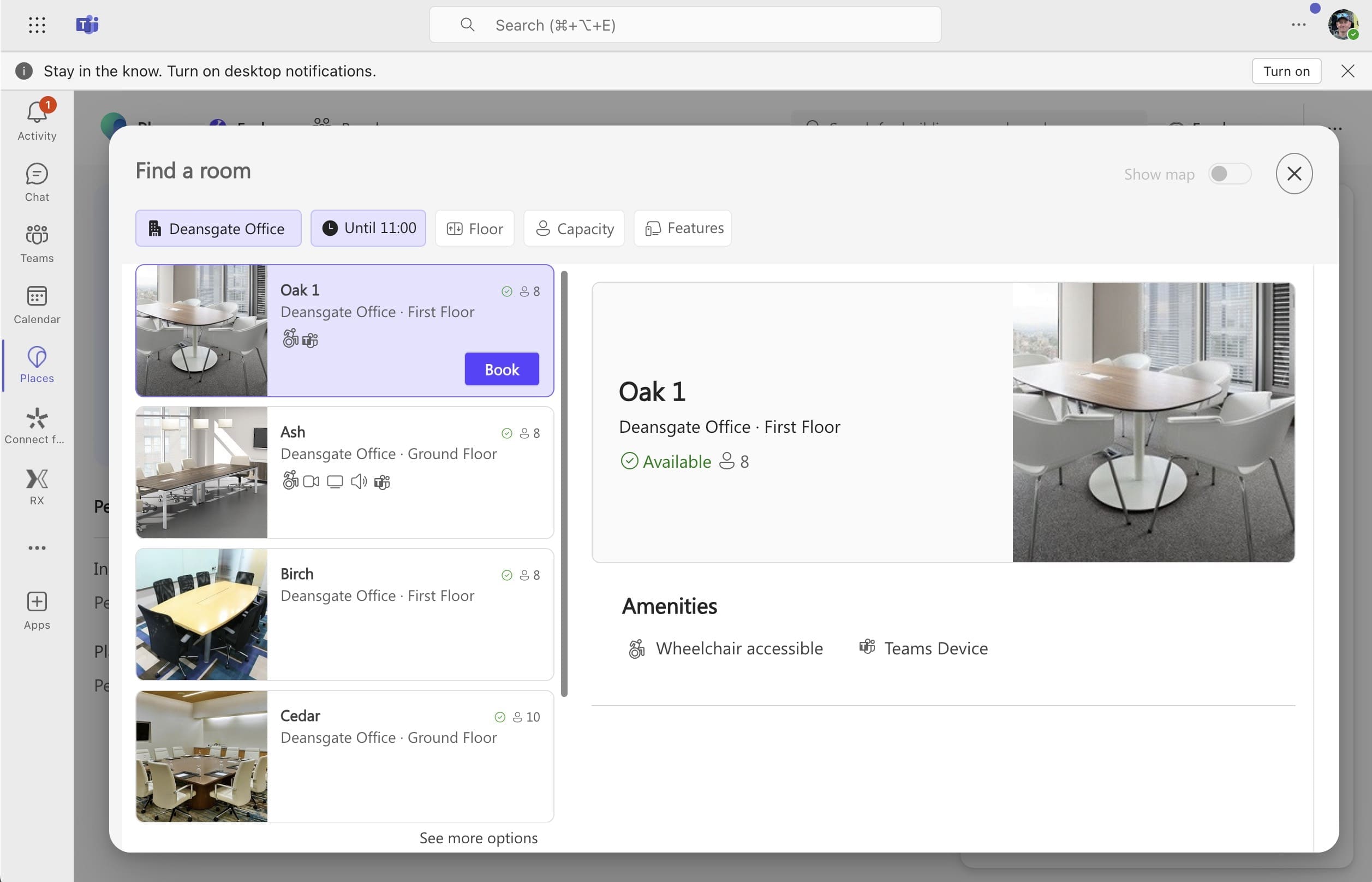
In place of the original Room Finder in Outlook Calendar there’s now a Places Finder. It offers enhanced user experience in comparison to Room Finder, and includes photos of the workspaces on offer, and filters for capacity and equipment.
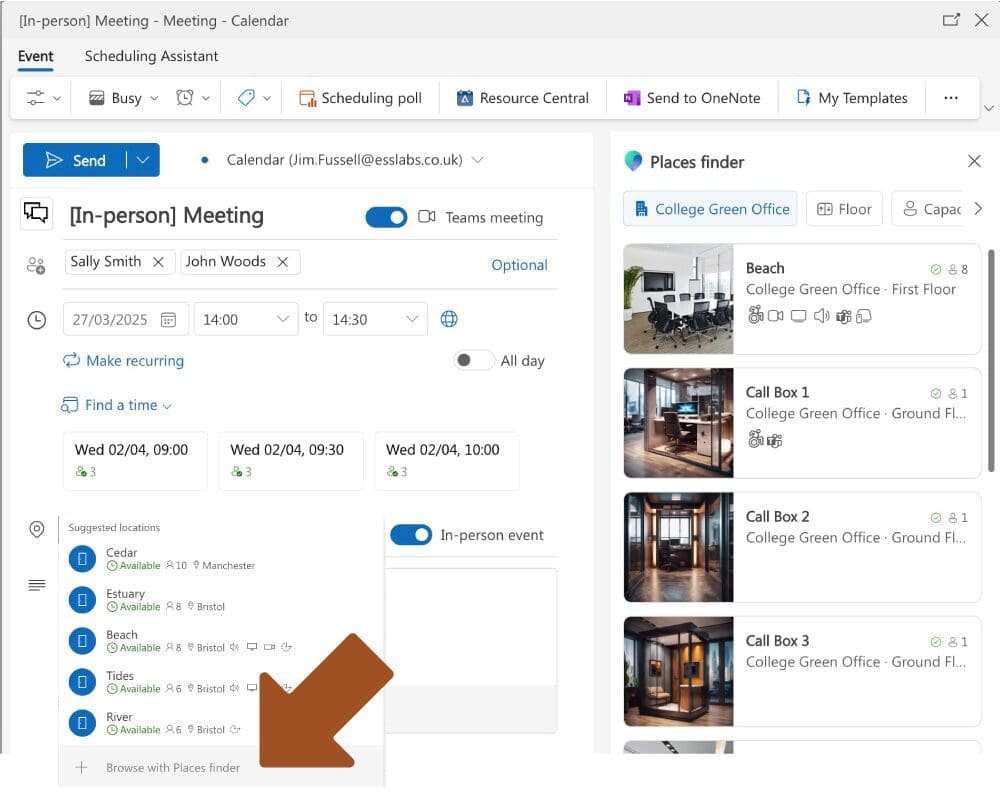
The new Microsoft Places Finder replaces Room Finder, adding photos, filters and an improved booking experience.
….From Teams Calendar
If you have the ‘New Calendar’ experience in Teams, you can now also access the Places Finder when you schedule a New Event in Teams Calendar.
PS – One thing we’ve observed is that the overall functionality of Places Finder is that it’s not dissimilar to Room Finder – the main difference is the photos!
New ‘Desk Event’ in Calendar
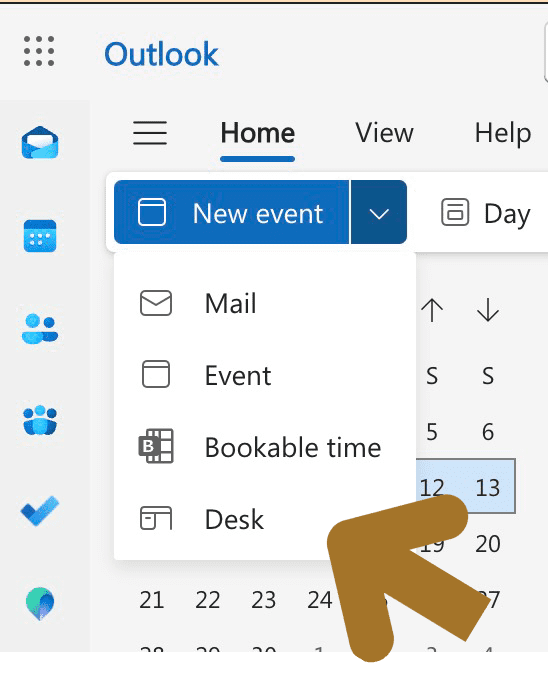
Another new feature added to both Outlook and Teams calendar is the Desk option in the ‘New event’ drop down.
One thing to watch out for when you ‘Reserve’ a desk is that you won’t see any bookings in your calendar unless you go to the ‘Filters‘ option and ensure ‘Reservations‘ is ticked.
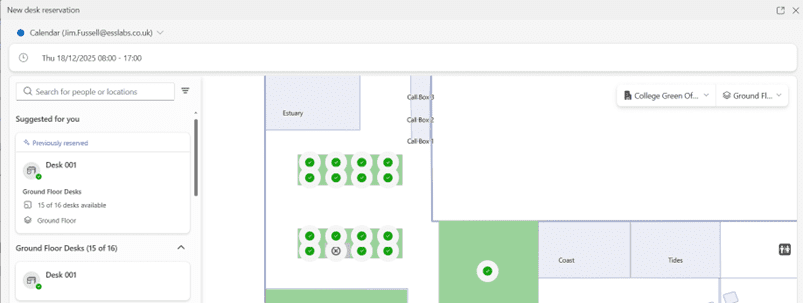
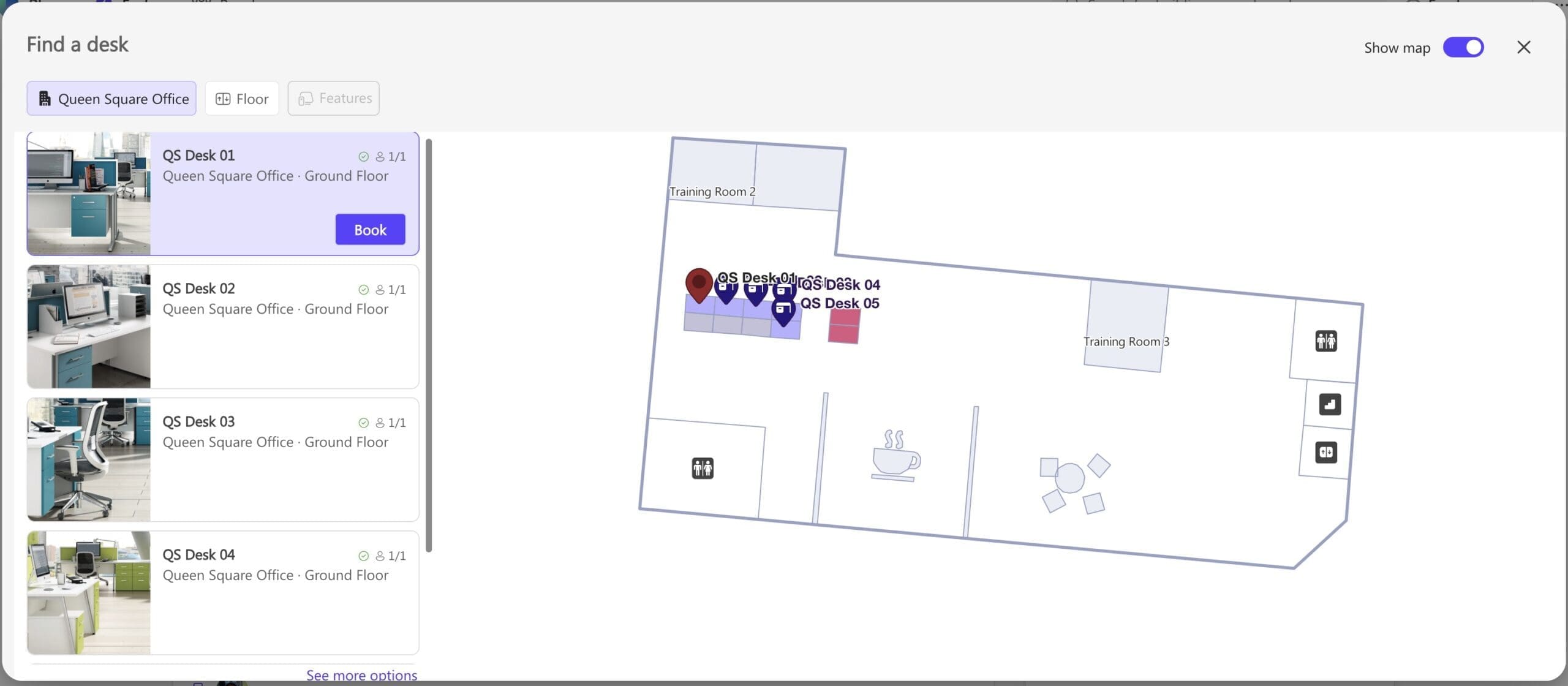
Also note if you book a desk from Outlook or Teams, you will see the new fully featured Desk finder, including a floor plan if configured:
You can find out more about the current user experience of this service in this video.
…From the Places Card
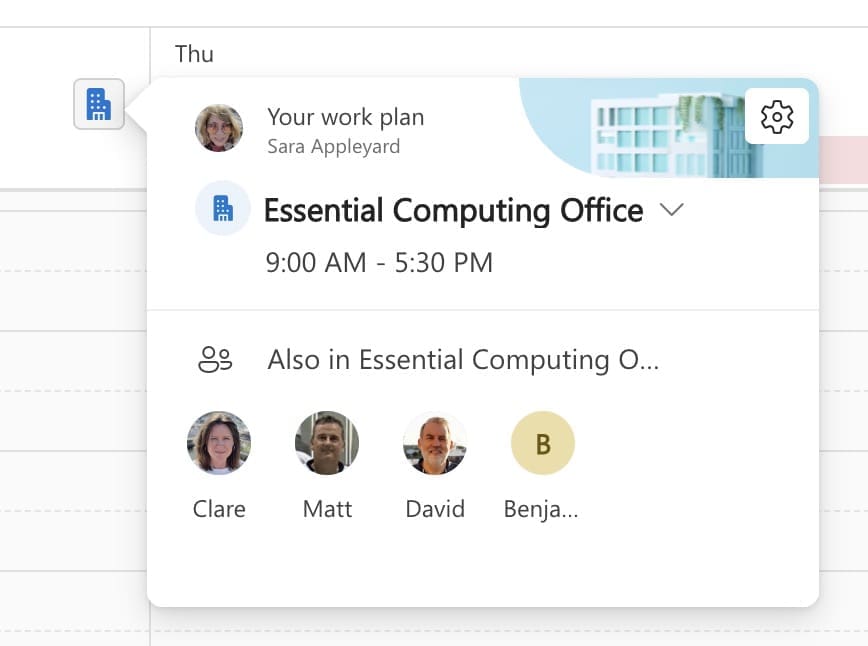
From the week view in new Outlook and Teams, clicking the office or home icon next to each date opens something called the Places Card, showing which of your closest collaborators plan to be in that day. It also gives quick access to Reserve a desk, a room, or link to the Places App.
Note: if your status is set to remote, you’ll first need to switch to ‘in office’ to make a booking.
If you happen to have booked a meeting already, but haven’t yet booked a meeting room, the Places card also prompts you to ‘Book room’.
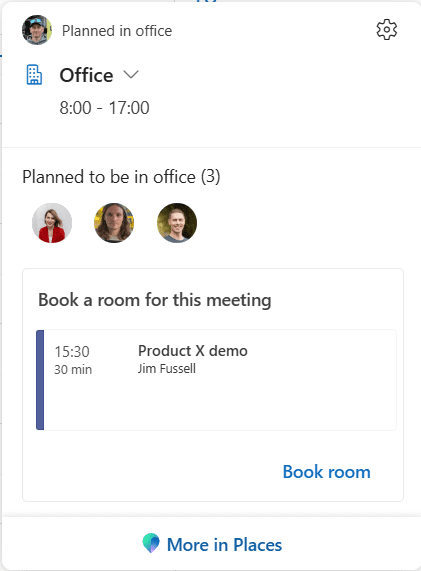
One observation is that in larger, busier organisations, people typically prefer to secure a room at the same time they schedule a meeting (rather than risk not having a room available later).
That said, with hybrid meetings, it’s probably a better ideas to hold off on booking a room until you know who plans to attend in person, so you don’t end up with a 10-person room with just 2 people in it!
….From the Places App
There is a dedicated Places App – which you can launch in Outlook, Teams or directly as a web page in your browser.
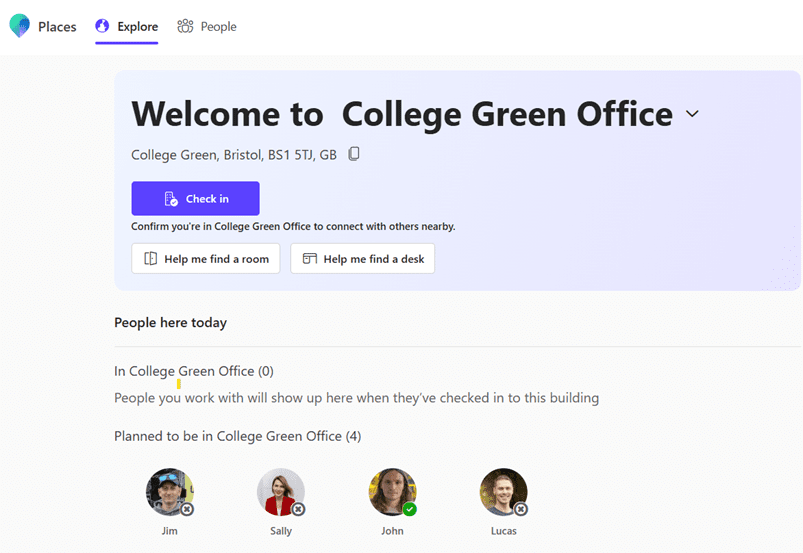
Seen from the default Explore view in the Places App, this service assists with workspace booking as follows:
- Checking into the office location (see lower in this article)
- Finding a room of desk – By default, users get to see a listing of available meeting rooms or desks at each office location, along with photos of the various workspaces. Where configured, there’s also an interactive map view that lets you select available meeting rooms or desks directly from an office schematic. Check out our more detailed Places maps article.
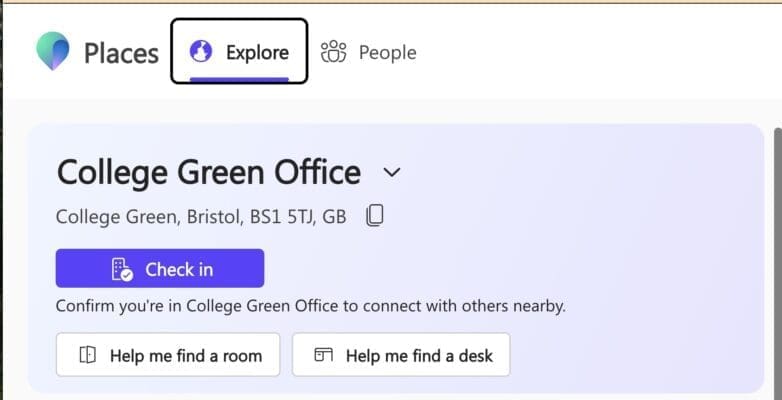
Note that you have to click either ‘Help me find a room’ or ‘Help me find a desk’, there’s no consolidated list or map view.
Easier in-person collaboration
As mentioned in the introduction to this article, the real potential benefit of using Microsoft Places lies in its features that support in-person collaboration – making it easy to see when your co-workers plan to be in and book for the same day, helping you avoid that all-too-familiar feeling of ‘commute regret’.
An important thing to note here is that you don’t need Teams Premium to access this functionality.
These are the locations from where you can see ‘who’s where’:
…From the Places App
This is what Places currently offers:
‘People here today’ – The default ‘Explore’ view in the Teams Places App shows which of your team members are also in the office (or are Planned to be in according to their location settings and activity).
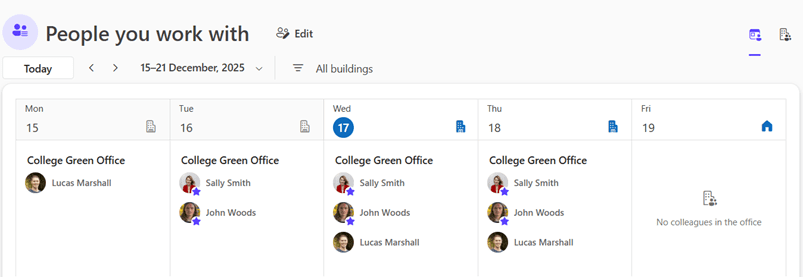
People you work with listing – Found in the ‘People‘ view in the Teams Places App, this service shows the current and planned whereabouts of your team members week by week, either as an ‘In office summary’ or across all locations.
If you click on the Office or Home icon next to any of the dates in this view, you will see the familiar Places card to book a desk or a room on the day selected.
When Places first became available it was possible to mark up your ‘favourite’ team members, however this is being retired at the end of 2025. Instead, your frequent collaborators will be determined automatically.
….From the Places Card
You will see which of your team members are also planning to be in the office. From here you can decide whether you want to go into the office or not!.
There’s a ‘lot of moving parts’ involved in rolling out Microsoft Places
We can help explore what is possible, assess your current readiness and start planning for a more connected and efficient workplace that leverages your Microsoft investment.
Checking-In
The default ‘Explore‘ view in the Teams Places App displays a prominent Check-in button. Pressing this button overrides any default location settings you’ve configured in Outlook or Teams.
So, for example, if you’ve set Monday as an ‘at home’ day, clicking ‘Check in’ when you make an ‘ad-hoc visit’ to the office on a Monday will flip your location for that date only.
It’s not mandatory and still depends on the individual to remember to do it manually.
In addition to the Check-In button in the Teams Places App, other ways to detect that individuals are physically present in the office or have arrived at a pre-booked workspace are evolving.
For example, one way to enable desk check-ins is by detecting when someone plugs into a known docking station that’s linked to a specific desk pool. This works by collecting device or peripheral data to confirm presence – though the setup of this can be a bit complex.
Teams Meeting Rooms (MTRs) bookings enable check-ins through Teams panels, however bear in mind that this may not necessarily indicate that the meeting organiser is physically in the building, nor all the meeting participants.
The option to add a Teams ‘presence signal’ to indicate when you’re in the office will also help colleagues and team members to meet up and socialise spontaneously, although I don’t believe this is ‘live’ as such yet.
What do you get with Copilot and Places?
If you have a Copilot licence you can expect more functionality alongside Places, such as recommendations on the best days for you to go into the office for maximum collaboration opportunities!
Copilot also promised to help adjust your schedule based on your in-person meetings, and make suggestions to help any workspace clashes when booking recurring meetings.
We’ll be tracking what Copilot offers when it comes to workspace booking in a separate article.
Can we Roll Out Microsoft Places now?
Yes. Microsoft Places is fully rolled out.
The Places card, Places Finder and app work well, however you will need to bear in mind that Microsoft Places is still evolving ‘behind the scenes’.
The optional Places map service takes a LOT of effort to get operational and has quite a few ‘glitches’.
Also, across the board there’s very little support available to users of Microsoft Places.
Our advice is therefore to start exploring Microsoft Places now within a small team of designated stakeholders that includes your facilities team, to see what it delivers.
And, dare we say, it might take a bit longer for Microsoft Places to match and surpass some of the basic features currently that you might be used to if you’re currently using a third-party workspace booking systems in this area.
You may also encounter some practical roadblocks. For example:
- You might need to keep using the Classic Outlook client because it lacks some features you need for business applications, or
- You may have an incumbent third-party room and desk booking system and will need to migrate.
There’s also the inevitable disconnect between how a technical solution is implemented and maintained, and the practical needs of your facilities teams or office managers, such as the ability to easily change resource attributes and move bookings around.
And finally, and this may be a total roadblock: From what we can see, Microsoft Places will require each user to have a Teams Premium licence, which starts at £7.70 per person, monthly. If you want to use Copilot functionality, it’s even more.
As we indicated earlier, the great news is that Room Finder has improved and even if you don’t have a Teams Premium licence there’s elements you can take advantage of.
For example, if everyone has configured their work locations in Outlook (by selecting a specific office, and not just ‘office’)- you’ll be able to see who’s in the office for an ‘in-person’ meeting.
Are you getting the most out of native Room Finder?
Check out our video that explores what you get without Teams Premium.